Import a list from Google Maps
The «Want to go» lists you have been saving for years don't need retyping: TapMap takes them by link.
© Mapbox · © OpenStreetMap
Three steps
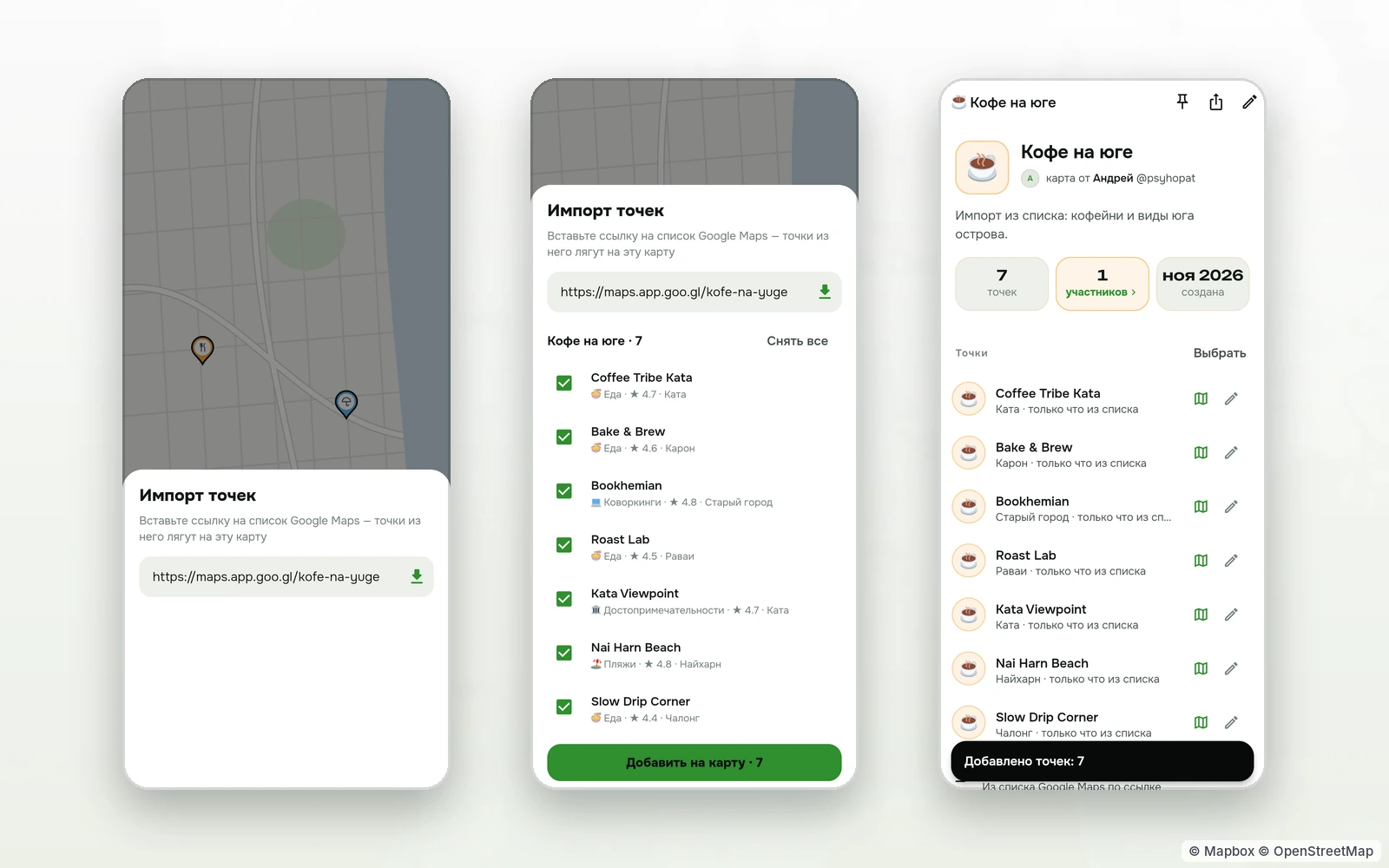
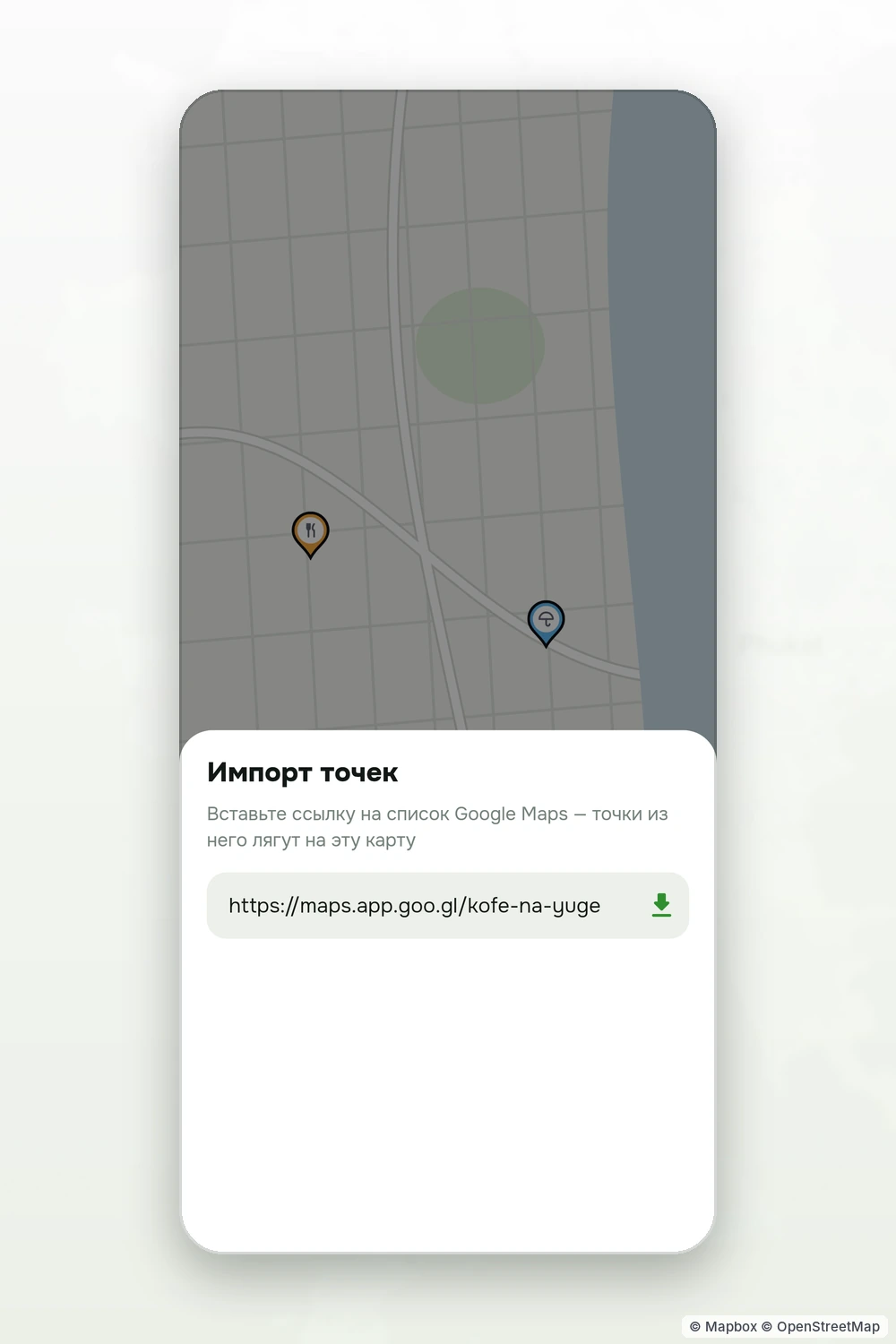
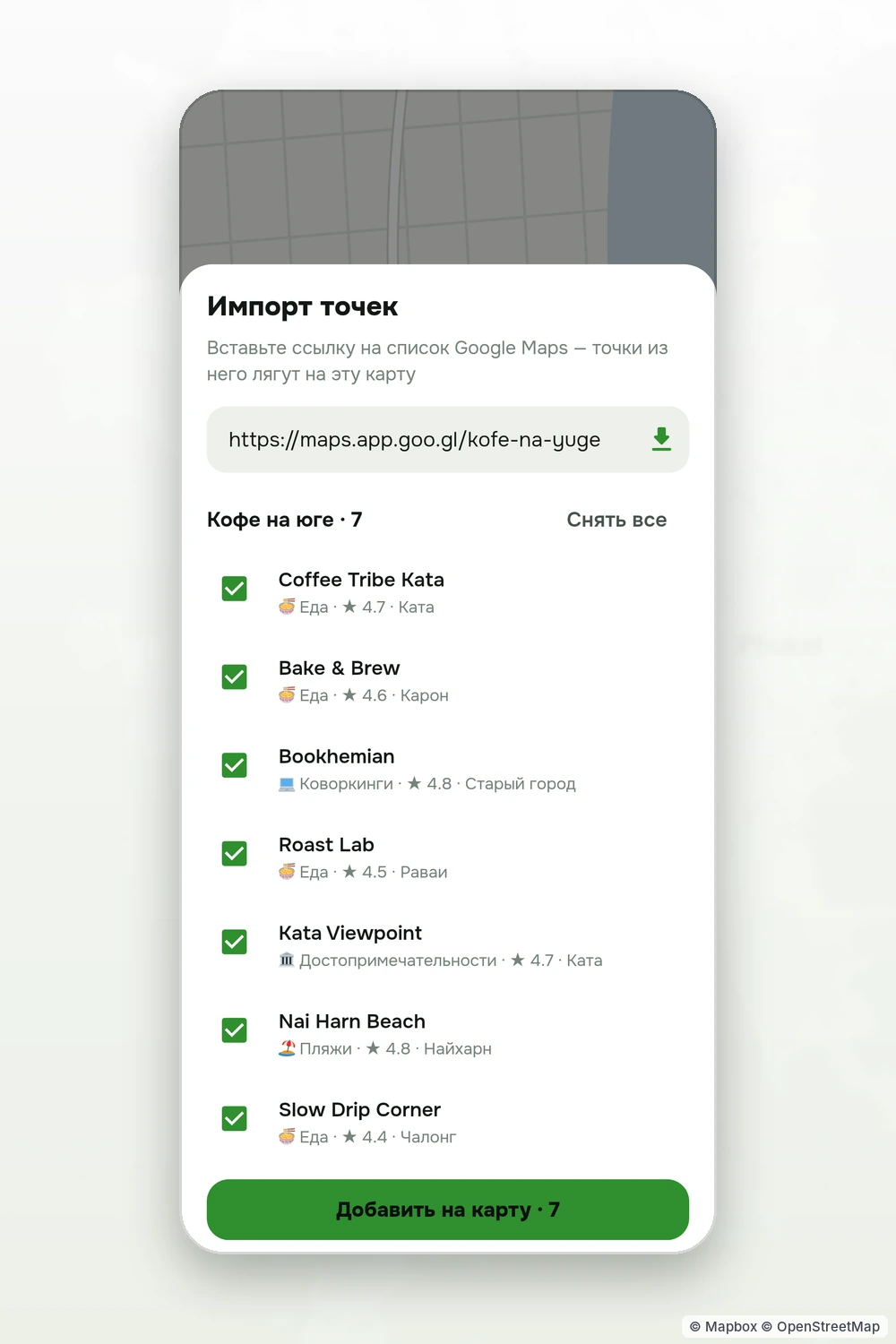
Open your map in TapMap and choose «Import points». Paste the link of a Google Maps list — the one its «Share» button gives you. TapMap reads it and shows the places with ticks: name, category, rating, area.
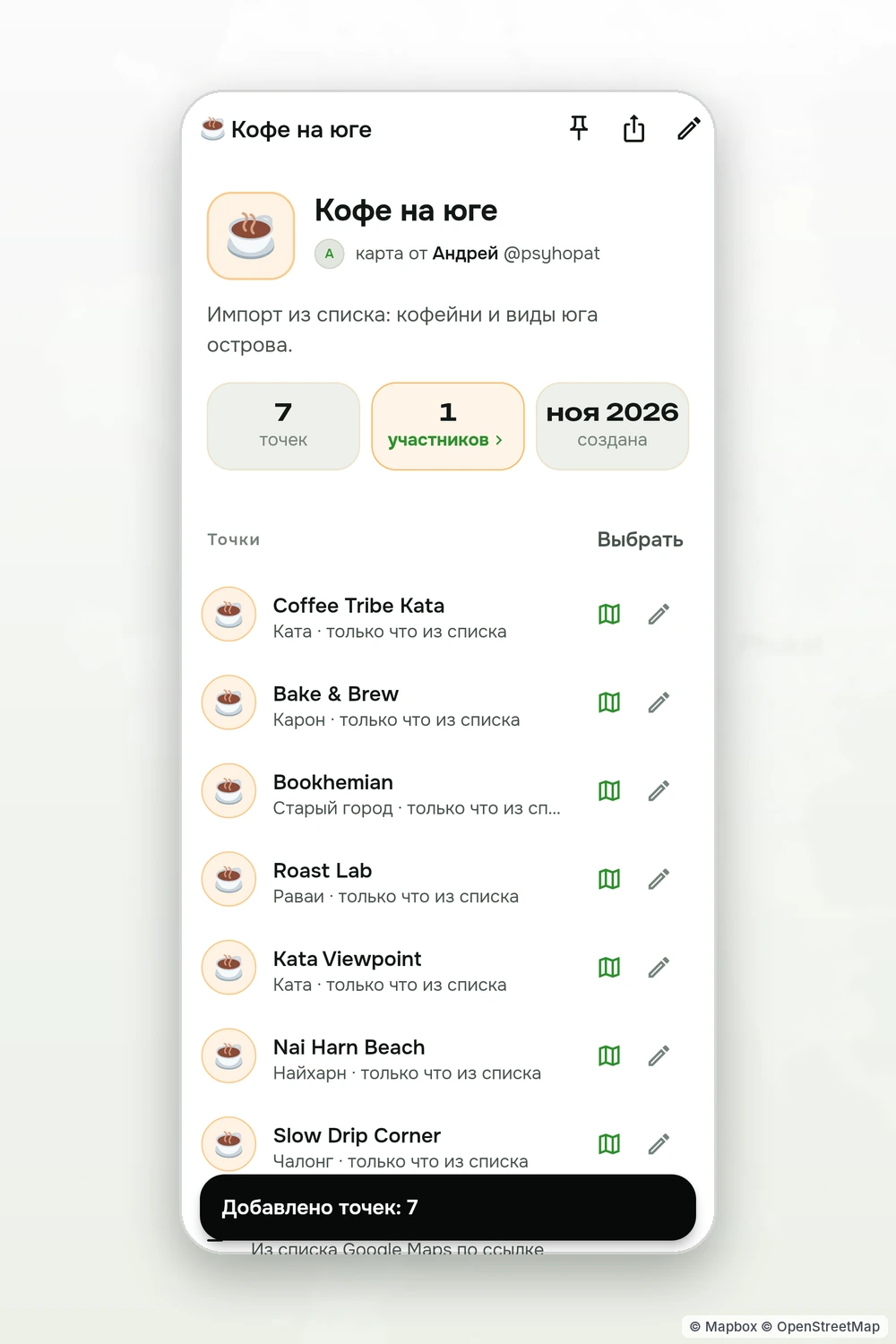
Untick what you don't need and tap «Add to the map». The places land on the map you chose, and the app tells you how many points were added.
What comes over
The name, the coordinates and the category. TapMap picks the category from the place's type in Google: a café becomes food, a beach a beach; anything that fits no category lands as an attraction.
If the map already has a place with the same name within 60 metres, it is not added twice — run the import again without fear of duplicates.
How to start
- In Google Maps open the list, tap «Share» and copy the link.
- In TapMap open your map → «Import points» and paste the link.
- Tick the places you want and tap «Add to the map».
Questions and answers
Which lists can be imported?
Lists that open by link: the list in Google Maps needs a «Share» button.
Do the places go into TapMap's shared base?
No, only onto your map. Publishing it for everyone is your call.
Can I import the same list again?
Yes. Places already on the map are not added a second time.
More features
- Your own map of favourite placesYour pins, friends as co-editors, maps as layers
- Map marketplaceOther people's place lists as layers over your map
- Map stylesReady-made styles and people's styles in one tap
- Map style editorColours, fonts, 3D buildings and your own icons in a browser
- Style API for AI agentsAn AI agent makes the style for you
TapMap is free
A map of places, events and friends. On Android and in the browser.